



Gone are the times when we had to extensively search the App Store and Play Store for questionable third-party applications, aiming to transform our iPhones and Androids into Wi-Fi hotspots. Nowadays, this procedure has become significantly more streamlined, courtesy of Apple and Google integrating Wi-Fi hotspot functionality directly into their individual operating systems. This guide illustrates the process of converting your phone into a Wi-Fi hotspot, allowing various devices in the vicinity to access your phone’s cellular data connection.
A Word of Caution
Hotspots serve as a fantastic solution for enabling your computer, tablet, and other devices to utilize the internet from your iPhone or Android device. However, exercising caution is essential, since your computer, tablet, or other gadgets might be configured to automatically download updates when linked to Wi-Fi (with Windows systems being particularly susceptible), which could swiftly deplete your data allocation. Nevertheless, you have the option to halt Windows updates, thus alleviating concerns and ensuring a more seamless experience.
How to Use iPhone as a Hotspot
For iOS users, the process involves setting up what Apple terms a “Personal Hotspot” to distribute your data among nearby devices. This functionality is available on an iPhone running iOS 8 or a later version, as well as on a cellular-enabled iPad equipped with iPadOS 8 or later.
Here’s how to proceed:
1. Launch the Settings app on your iOS device.
2. Navigate to the “Cellular” section if you’re configuring a hotspot for the first time. If you’ve done this previously, you can directly access the “Personal Hotspot” option.

- Make sure that the “Cellular Data” option is switched on. If it’s turned off, the ability to create a hotspot will be unavailable and displayed in gray.
- Next, tap on the “Personal Hotspot” option located below the settings.

- Click on the slider adjacent to the “Allow others to join” option, toggling it to the green position.

- Examine the Wi-Fi field located below. Take note of this information and record it somewhere, as you will require it to establish a connection between the hotspot and the other device(s).
- As an alternative option, you can tap on the “Wi-Fi Password” field.

- Your hotspot is now active. Proceed to the Wi-Fi settings on your other device and select the network that corresponds to your iPhone. Typically, it will appear as “[Your Name]’s iPhone” by default.
- When you decide to cease sharing your connection, the process is straightforward. Access the Control Center on your iPhone and deactivate the “Personal Hotspot” tile by toggling it off.

- On iOS, you also have the option to connect to the hotspot using Bluetooth or USB.

How to Use Android Phone as a Hotspot
Procedures might differ slightly based on your specific Android phone, but the basic principles remain consistent across most phones, provided they are operating on a relatively recent version of Android (5.0 or later). In this instance, we’ll illustrate the process using a Pixel device running Android 13.
- Launch the Settings application on your Android device.
- Select the “Network & Internet” option.
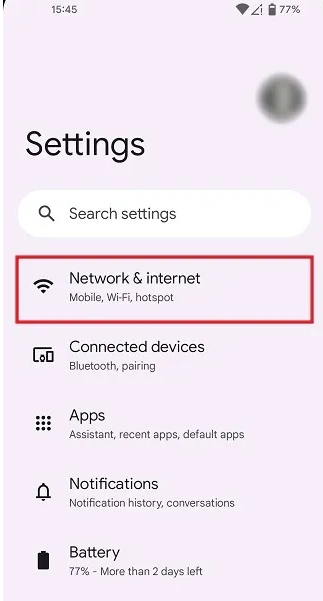
- Select the “Hotspot & tethering” option.

- On the following screen, choose “Wi-Fi hotspot.” You also have the alternative to share your phone’s connection using USB (requires a USB cable), Bluetooth, or Ethernet.
- Switch on the “Use Wi-Fi hotspot” option at the top.

- Click on “Hotspot name” to assign a name to your hotspot, which will help in identifying it among other available connections.
- Tap on “Hotspot password.”

- After viewing the password required for connecting to the hotspot, you also have the choice to modify it to your preference. Be sure to select “OK” after making the changes.
- Furthermore, you have the option to activate “Turn off hotspot automatically” when there are no connected devices. You can also enable “Extend compatibility” to enhance the discoverability of the hotspot for other devices.

- Navigate to the device you want to connect to the newly created hotspot. For instance, in this scenario, we’ll demonstrate using a Windows laptop. Open the list of available Wi-Fi connections and locate the hotspot you’ve set up.
- Select the hotspot from the list and click on it. Then, input the password you generated in the previous step. Connecting to the hotspot should proceed without any issues.
- To stop sharing your Internet connection, you can easily turn off the hotspot using the Quick Settings on your Android device. Simply swipe down from the top of the screen, and then tap on the “Hotspot” toggle to deactivate it.



