



After meticulously curating your desktop background and arranging your folders just so, a single icon in your Mac dock can disrupt the entire aesthetic. Luckily, Apple empowers you to transform default app icons, personalizing them to match your unique style. This guide walks you through the process of achieving this customization feat!
How to Manually Set a Custom App Icon in macOS
Swapping out the standard app icons on macOS with personalized alternatives offers a simple yet effective means to elevate your Mac usage and infuse your interface with your individual touch. Irrespective of whether you’re on the latest macOS 13 Ventura or an earlier iteration of Apple’s operating system, the following guidelines will steer you through the process. Proceed with the steps outlined below.
1. Retrieve a customized application icon in the .icns file format by downloading it from a source like macOSicons. Alternatively, you can opt for an image saved in the .jpeg or .png format.
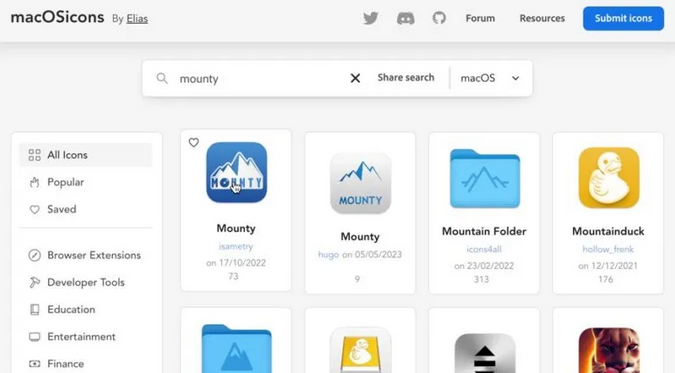
2. Open Finder and locate the downloaded application icon. Copy the icon to the clipboard. Next, navigate to the app whose icon you wish to modify. Right-click on the app using a two-finger click, and from the context menu, select the “Get Info” option.
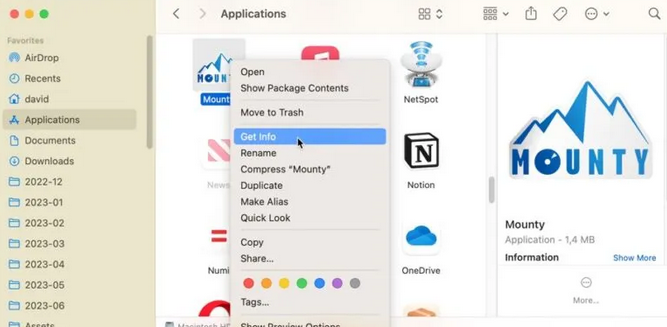
3. Click on the small icon located at the top-left corner to select it. Afterward, press the Command key along with the V key (Command + V) to paste your newly downloaded icon over the existing one. Alternatively, you can directly drag and drop the downloaded icon onto the current icon within the “Get Info” window.
How to Automatically Change the Default App Icons on macOS
When you manually customize icons, they tend to revert back to their default appearance after every update. This can lead to the need for repeatedly going through the entire customization process, which can become quite tedious. However, a convenient solution to this problem is using a free tool called Pictogram, which automates the process and allows you to set it up once and forget about it. To keep your custom app icons intact even after updates, follow the steps outlined below.
- Download Pictogram from the official website. Unzip the downloaded archive and then relocate the Pictogram application to the “Applications” folder on your Mac.
- Open Pictogram and pick the specific app for which you wish to alter the icon. Click on the “Select Custom Icon” button, then navigate to and choose the icon you intend to use.

How to Change the Icons of System Apps
Regrettably, both methods explained above are ineffective for altering the default Apple-provided apps on macOS 11 Big Sur and later versions, as they are situated in a safeguarded region known as the Signed System Volume (SSV). This security measure is in place to safeguard system files and apps from unauthorized modifications.
Deactivating the SSV involves a degree of technical expertise and a comfort level with adjusting system settings. We recommend proceeding with caution if you decide to take this route. Modifying system files can lead to unforeseen problems, such as apps becoming unresponsive and system instability.


